Packing a mirror
Turn a cloned folder into one ZIM file or a self-contained offline viewer with kage pack.
A clone is a folder of files, which is easy to browse but awkward to move around: copying thousands of small files is slow, and handing someone a directory is less tidy than handing them one file. kage pack collapses a mirror into a single distributable artifact, and you choose the shape: an open ZIM archive, or a self-contained executable that serves the site offline when run.
The two examples below assume you have already cloned a site, for instance Paul Graham's essays:
kage clone paulgraham.com
A single ZIM file
ZIM is the open, single-file offline-archive format Kiwix uses. kage pack writes one from a cloned host directory:
kage pack paulgraham.com
packed paulgraham.com.zim
  size 4.2 MiB
  open kage open paulgraham.com.zim
The whole mirror, pages and assets, lives in that one file. Text is zstd compressed; already-compressed media (images, fonts, video) is stored as-is. Packing the same mirror twice produces a byte-identical file, so a ZIM is safe to checksum, diff, and cache.
If you cloned with the default output directory, you can pass a bare host name and kage finds the mirror for you. That is why kage pack paulgraham.com works straight after kage clone paulgraham.com; pass a full path if your mirror lives somewhere else.
What ZIM is, and using it with Kiwix
ZIM is built for exactly this job: a whole website (or a whole Wikipedia) squeezed into one compressed, indexed, read-only file. It is the format behind Kiwix, the offline-content project people use to carry Wikipedia, Stack Overflow, and Project Gutenberg onto boats, into classrooms with no internet, and onto a phone for a long flight. Because the format is a documented standard rather than a kage invention, a paulgraham.com.zim you make today still opens in any ZIM reader years from now.
So you are not locked into kage. kage open is the read side and the quickest way back in, but the same file works across the wider Kiwix ecosystem:
kage open paulgraham.com.zim            # read it back with kage
kiwix-serve paulgraham.com.zim          # or serve it with Kiwix at http://localhost
You can also double-click the file in the Kiwix desktop app, or load it on Kiwix for Android or iOS to read your mirror on your phone. kage writes the metadata the format and zimcheck treat as mandatory, including the title, description, and the favicon Kiwix shows as the book icon in its library, so the archive shows up properly rather than as an untitled, iconless entry.
Searching a packed mirror
Each page is stored under its own real <title>, so the search box in Kiwix (and any other ZIM reader) suggests pages by their readable title: type five into a paulgraham.com archive and it offers "Five Founders" and "Female Founders", not a filename. This title search works in every reader with no extra index.
What kage does not write is a Xapian full-text index, the separate search database that lets Kiwix match words inside a page's body. Xapian is GPL and kage is MIT, so linking it in would change kage's license; rather than do that, kage leaves full-text search to its own columnar export. kage parquet export mirror.zim writes one row per page with a text column, which DuckDB searches with its fts extension or a plain ILIKE, fully offline and ranked:
kage parquet export paulgraham.com.zim -o paulgraham.parquet
duckdb -c "SELECT url FROM 'paulgraham.parquet' WHERE text ILIKE '%schlep blindness%'"
A self-contained binary
--format binary appends the ZIM to a copy of kage, producing one executable that is the site. Run it and it serves the mirror on a free local port and opens your browser; it ignores its arguments, because the binary is the site, not the kage CLI.
kage pack paulgraham.com --format binary -o paulgraham
packed paulgraham
  size 21.9 MiB
  run ./paulgraham to view the site offline
./paulgraham
serving offline site at http://127.0.0.1:52431 (Ctrl-C to stop)
The binary carries a full kage, so it is tens of megabytes regardless of site size; the trade is that the recipient needs nothing installed, not even kage, not even a ZIM reader.
A native window instead of a browser
By default the viewer opens the system browser, which means a tab with an address bar and your other tabs alongside. Build kage with the webview tag and it opens the site in its own native window instead, backed by the operating system's WebView (WKWebView on macOS, WebView2 on Windows, WebKitGTK on Linux), so a packed binary feels like a standalone app:
CGO_ENABLED=1 go build -tags webview -o kage ./cmd/kage
kage pack paulgraham.com --format binary --base kage -o paulgraham
./paulgraham   # opens a window, no browser
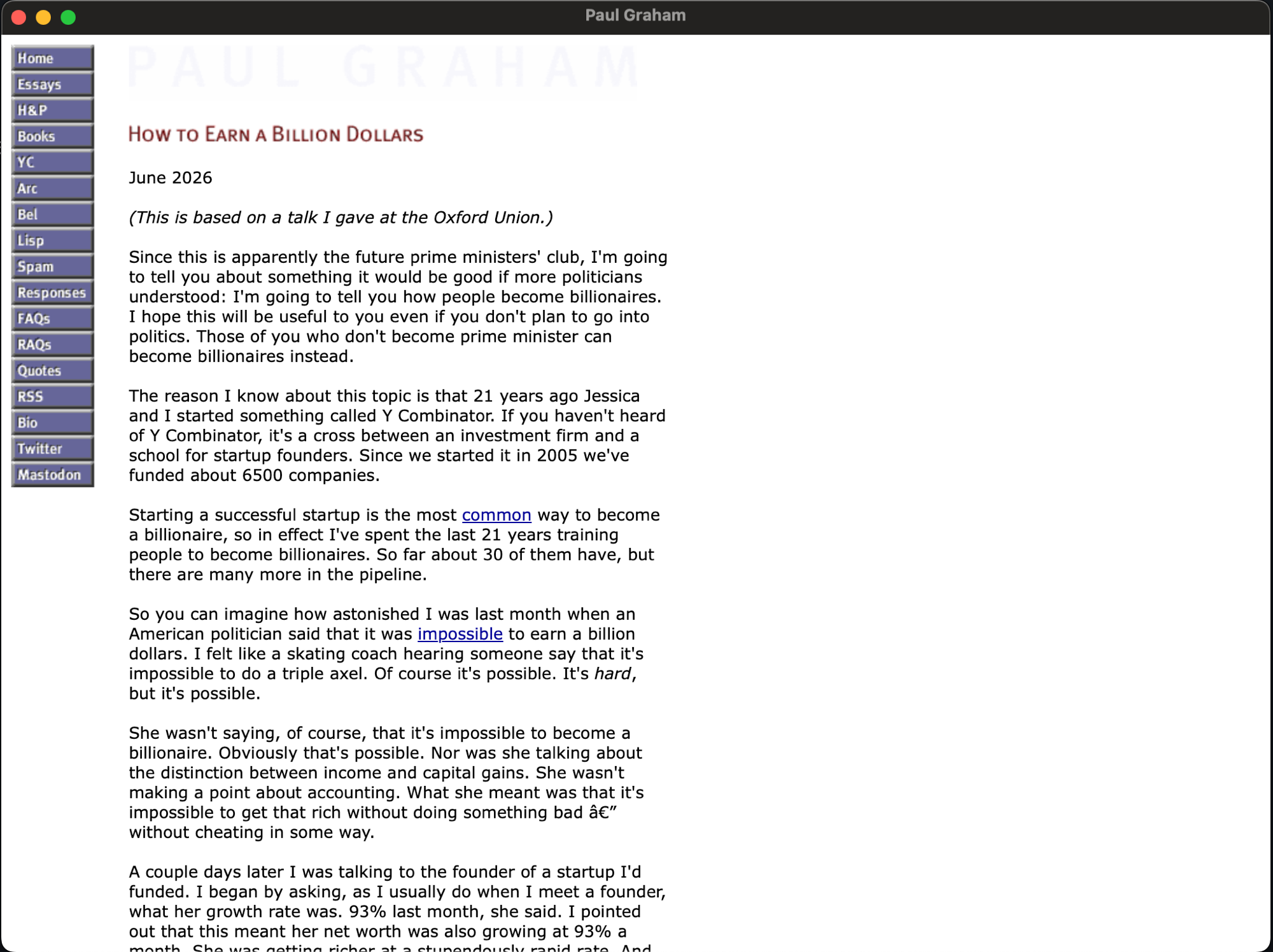
The window title comes from the archive's title. This build needs cgo and links the platform WebView, so it is opt-in and kept out of the default CGO_ENABLED=0 release; the prebuilt binaries open the browser. kage open honours the same tag: built with -tags webview it shows the ZIM in a native window too.
Build a viewer for another platform
The appended archive is platform-independent; only the base executable carries the architecture. Point --base at a kage binary built for another OS (download one from a kage release; every platform ships one) to produce a viewer for that platform from your own machine. kage reads the base's executable header to detect the target OS, so a Windows viewer automatically gets a .exe name and the run hint names the right platform:
# From macOS, build a Windows viewer
kage pack paulgraham.com --format binary --base kage-windows-amd64.exe
# -> paulgraham.exe
macOS note
A binary you built or downloaded may be quarantined by Gatekeeper on first run. kage prints the exact command to clear it:
xattr -d com.apple.quarantine ./paulgraham
A double-click app
The self-contained binary is perfect from a terminal, but double-clicking it in a file manager is less tidy: on macOS Finder opens a Terminal window behind the site, and on Windows a console flashes alongside it. Add --app and kage wraps the same viewer in a real desktop app, so a double-click just opens the mirror with no terminal in sight, using the site's own favicon as the icon.
On macOS it writes a standard .app bundle:
kage pack paulgraham.com --app
packed paulgraham.app
  size 13.5 MiB
  icon paulgraham.com/apple-touch-icon.png
  double-click paulgraham.app to open the site offline
The bundle holds the packed viewer under Contents/MacOS, an Info.plist describing the app, and the icon converted to Contents/Resources/icon.icns. Double-click it in Finder, or run open paulgraham.app, and the site comes up with no console attached.
On Linux, point --base at a Linux kage and you get an AppImage-style .AppDir: the viewer as AppRun, a .desktop launcher with Terminal=false, and the icon as a PNG. When appimagetool is on your PATH, kage runs it for you and turns the directory into one double-clickable .AppImage; otherwise it leaves the .AppDir ready for any AppImage tool.
kage pack paulgraham.com --app --base kage-linux-amd64 # -> paulgraham.AppDir (+ .AppImage)
kage picks the icon by digging through the mirror for the site's favicon. It prefers a large apple-touch-icon.png and falls back to favicon.png or a PNG-based favicon.ico; if a site only ships a legacy BMP .ico the bundle is built without a custom icon rather than with a mangled one. Override the choice with --icon path/to/image.png.
For the full "it's an app" effect, pair --app with a webview base so the double-click opens a native window instead of the system browser:
make build-webview
kage pack paulgraham.com --app --base bin/kage
Windows needs no bundle, because there a single .exe already is the app. What it needs is to lose the console window. A normal build is console-attached (handy for the CLI, since that is where clone progress prints), so the release ships a second Windows binary linked for the GUI subsystem in kage_<version>_windows-gui_<arch>.zip. Pack a viewer onto that base and double-clicking the result opens the site with no console behind it:
kage pack paulgraham.com --format binary --base kage-windows-gui-amd64.exe # -> paulgraham.exe
Metadata and options
kage pack paulgraham.com \
  --title "Paul Graham, offline" \
  --description "A snapshot taken for archival" \
  --language eng \
  --date 2026-06-14
--title defaults to the main page's <title>, then the host name. --description defaults to a line derived from the host, since a description is mandatory metadata. --date defaults to today; pass a fixed value for a fully reproducible file. --no-compress stores every cluster raw, which packs fastest and lets a reader without zstd open the result. -o/--out overrides the output path for either format.
Beyond these, kage fills in the rest of the mandatory metadata on its own: a unique Name, the Language, and an Illustrator_48x48@1 icon. The icon is the site's favicon dug out of the mirror (an apple-touch-icon.png, favicon.png, or a PNG-based favicon.ico) and rescaled to a 48x48 PNG, the same discovery --app uses for the desktop icon. A site that ships only a legacy BMP .ico or no icon at all is packed without one rather than with a broken image.